This Tool consolidates your essential shelf tools into a dedicated hub, allowing you to create a customized tool palette inside Houdini. It also allows you to organize your most needed functions, and deploy them directly with a single click to eliminate searching through multiple default shelves.
Shelf Manager
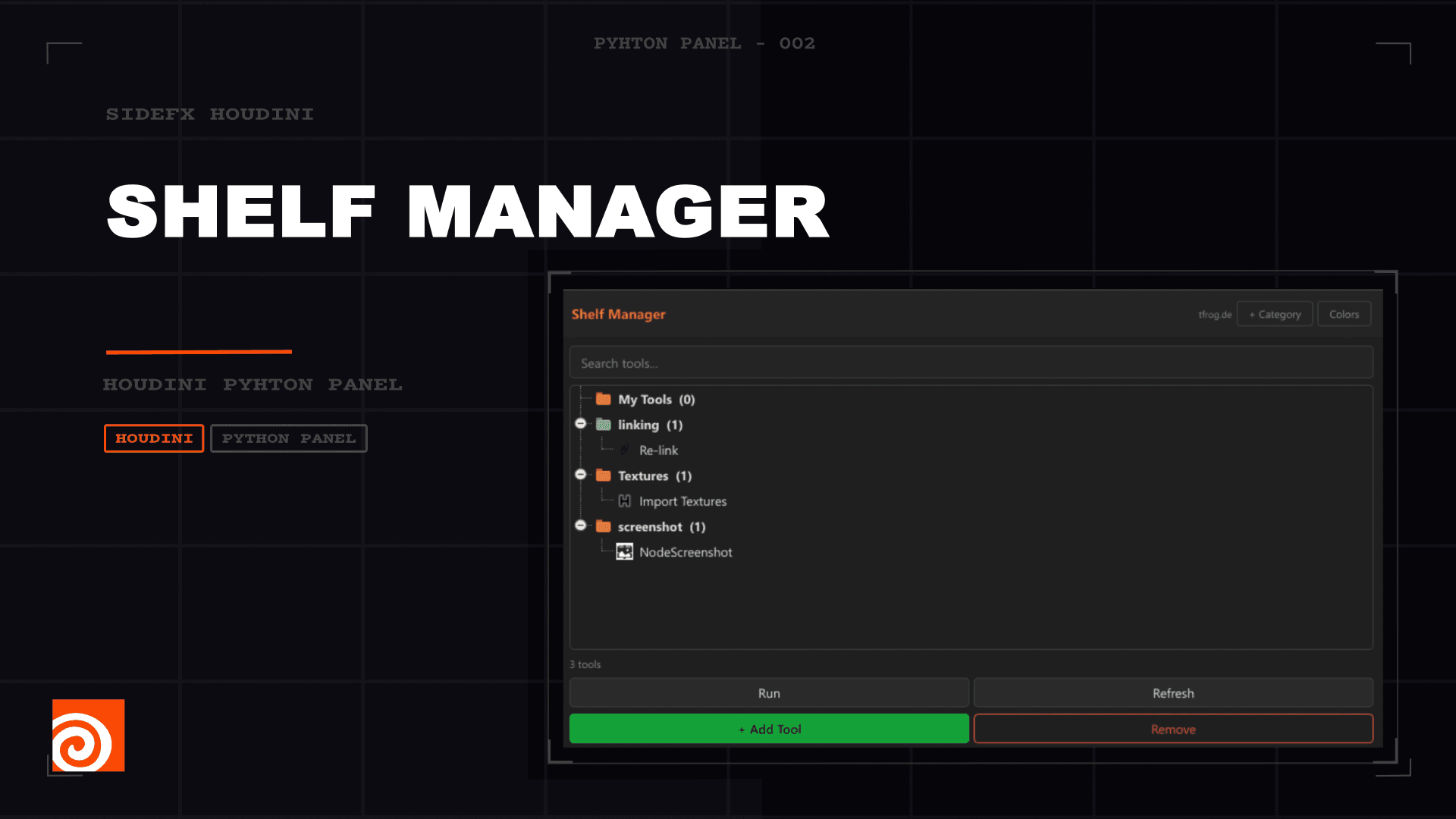
Explore my full suite of Python panels for an enhanced workflow. All of these tools share a globally linked color UI, ensuring that your custom interface preferences and accent colors are instantly synced across every panel in the collection.
Installation Guide
1 / 8
Documentation
Shelf Manager
A Houdini Python Panel for organizing your most-used shelf tools into custom categories with drag-and-drop support. Part of the tfrog toolset for Houdini 21.
Installation
- Open Houdini
- In Houdini, go to Windows → Python Panel Editor
- Click the New Interface button to create a new interface
- Name it
Shelf_Managerand Label itShelf Manager - Activate Include in Pane Tab Menu
- Paste the entire script into the Script tab
- Click Apply / Accept
- Open the panel via New Pane Tab → Python Panel → Shelf Manager
Interface Overview
The Shelf Manager uses a tree view (similar to the Preset Manager) with categories as folders and tools as items inside them. The interface consists of:
- Header Bar — Title, "+ Category" button, and Colors button
- Search Bar — Filter tools in real time
- Tree View — Categories (folders) containing shelf tools
- Action Buttons — Run, Refresh, + Add Tool, Remove
The "My Tools" Category
Every Shelf Manager starts with a default category called My Tools. This category cannot be deleted. If you delete another category that contains tools, those tools are automatically moved into "My Tools" so nothing is lost.
Managing Categories
Creating a Category
Click + Category in the header bar. Enter a name in the dialog. The new category appears in the tree.
Renaming a Category
Right-click a category in the tree and select Rename...
Changing a Category Color
Right-click a category and select Change Color... to open a color picker. The category's folder icon updates to reflect the chosen color.
Reordering Categories
Right-click a category and use Move Up or Move Down to change its position in the tree.
Creating Subcategories
Drag a category onto another category to nest it as a subcategory. The tree supports unlimited nesting depth.
Moving a Category to Top Level
To move a subcategory back to the top level, drag it onto the empty space below the tree (not onto any other item).
Deleting a Category
Right-click a category and select Delete Category (not available for "My Tools"). You can also select a category and click the Remove button. A confirmation dialog appears listing what will be removed. All tools inside the deleted category (including tools in subcategories) are moved to "My Tools".
Managing Tools
Adding Tools
- Click the + Add Tool button at the bottom
- A dialog opens listing all available Houdini shelf tools
- Search for tools by name using the search bar at the top
- Select one or more tools (use Ctrl/Shift for multi-select)
- Click Add or double-click a single tool
- If you have multiple categories, you'll be asked which one to add the tools to
Running a Tool
There are three ways to run a tool:
- Double-click a tool in the tree
- Select a tool and click the Run button
- Right-click a tool and select Run
Moving Tools Between Categories
Drag and drop a tool (or multiple selected tools) from one category onto another. The target category highlights in blue while dragging. You can also right-click a tool and select Set Category... to pick from a dropdown list that includes all categories and subcategories.
Removing Tools
Select one or more tools (and/or categories) and click Remove. A confirmation dialog appears listing exactly what will be removed. Removing a tool only removes it from the Shelf Manager — it does not delete the tool from Houdini's shelf system.
Refreshing
Click the Refresh button to rebuild the tree from the saved data.
Search
Type in the search bar to filter tools in real time. The search is case-insensitive and matches against both the tool's internal name and its display label. Categories with no matching tools are automatically hidden.
Context Menu (Right-Click)
On a Tool
| Action | Description |
|---|---|
| Run | Execute the shelf tool |
| Set Category... | Move the tool to a different category |
| Remove | Remove the tool from the Shelf Manager |
On a Category
| Action | Description |
|---|---|
| Rename... | Change the category name |
| Change Color... | Pick a new folder icon color |
| Move Up / Move Down | Reorder the category |
| Delete Category | Remove the category (tools move to "My Tools") |
On Empty Space
| Action | Description |
|---|---|
| New Category... | Create a new top-level category |
Color Settings
Click the Colors button in the header bar. These settings are shared across all tfrog tools. See the Expression Manager documentation for the full list of color options.
Data Storage
$HOUDINI_USER_PREF_DIR/tfrog/shelf_manager.json    — Categories, tools, and nesting structure
$HOUDINI_USER_PREF_DIR/tfrog/tfrog_colors.json      — Shared color settings